Install and Hyper basics
Capslock Enhancement V3 current targets macOS and Karabiner-Elements. There is nothing else to install: the configuration is a set of complex-modification rules that Karabiner interprets, so nothing new runs in the background and nothing is compiled on your machine.
This guide was verified with Karabiner-Elements 16.1.0 in August 2026, whose support matrix covers macOS 13 Ventura through macOS 27 on Intel and Apple silicon. Check the official site for the current release.
Install
Install Karabiner-Elements
Download the DMG from the official site
and run Karabiner-Elements.pkg, or install the cask:
Open Karabiner-Elements Settings and follow its prompts in System Settings. Allow the privileged and non-privileged background services, Accessibility, Input Monitoring, and the Driver Extension. Under Virtual Keyboard, select the layout matching your physical keyboard. The official installation guide explains what each permission is for.
Import the rules
Open the import link below. Any browser hands it straight to Karabiner-Elements:
Import Capslock Enhancement V3.1
Or paste the URL yourself:
Choose Import and allow the browser to open Karabiner-Elements.
Enable the rules and check them
Under Settings › Complex Modifications, enable the rules you want. The ten
rules are independent, so a family you have no use for can simply stay off;
the first one, CapsLock to Hyper, is the one every other rule depends on.
Then tap ⇪: it should send ⎋. Hold it while pressing H J K L: the cursor moves. You are on plane zero.
Two alternatives lead to the same place. The Karabiner gallery page
has an Import button of its own, and for a fully offline install you can
drop capslock.json
into ~/.config/karabiner/assets/complex_modifications/ and pick Add predefined rule. Karabiner-EventViewer shows what any key actually
emits if something looks wrong.
Ten rules
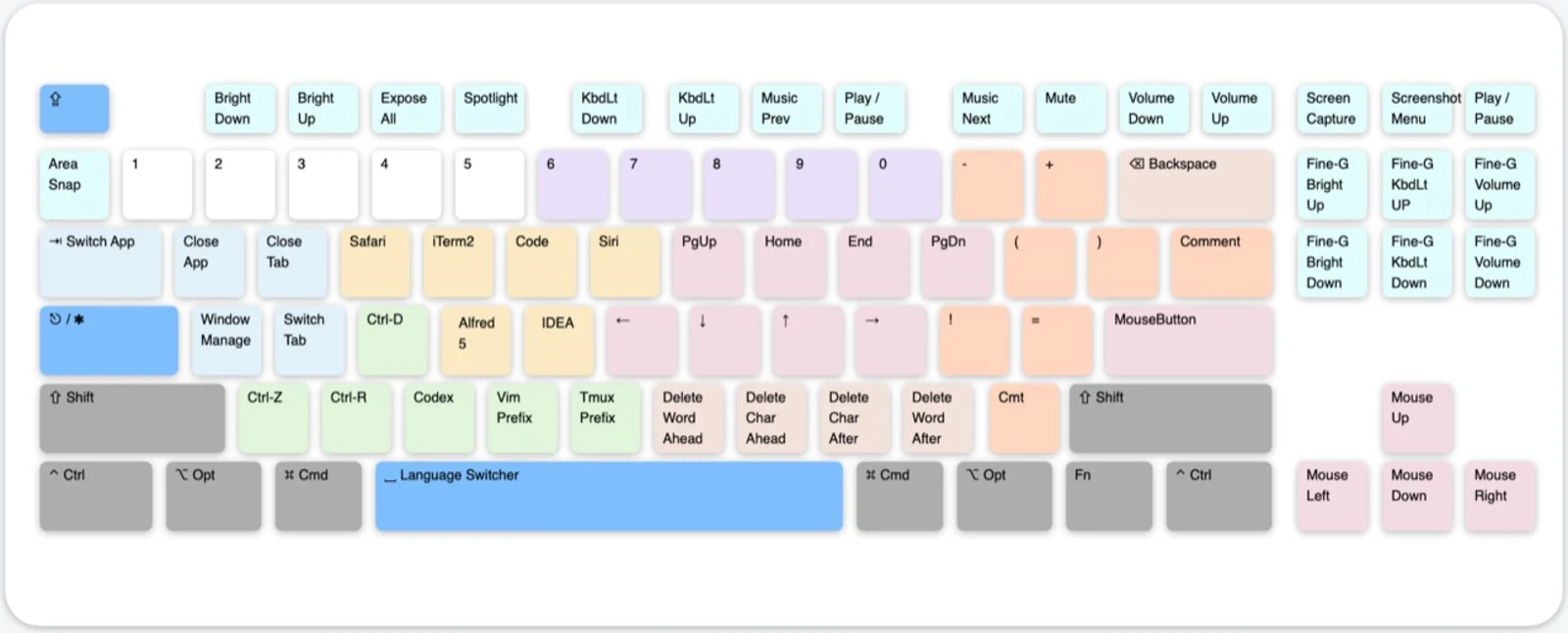
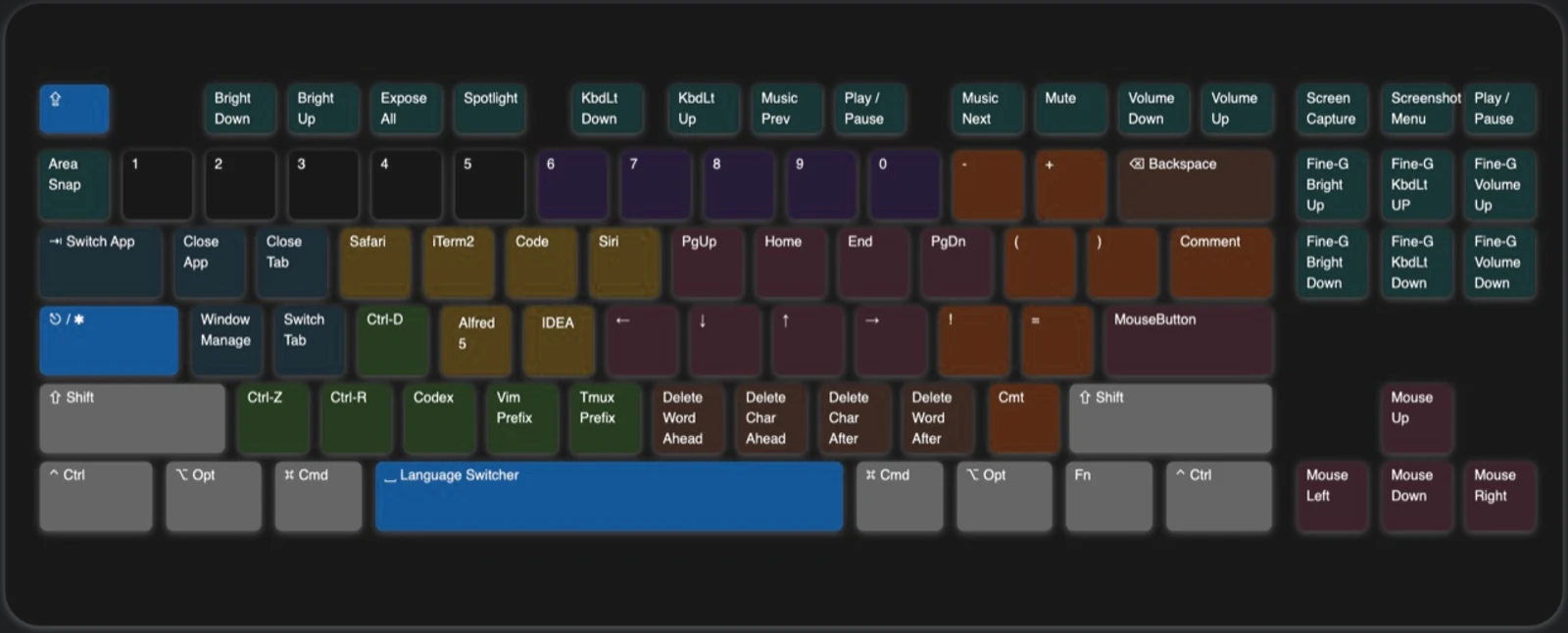
The keyboard map is colour-coded by purpose, so a key's neighbourhood tells you roughly what it does before you look anything up. The configuration ships as ten Karabiner rules, one per family, and you enable them one by one.
| Family | Colour | What it does | Mappings |
|---|---|---|---|
| Basic | Blue | Tap ⇪ for ⎋, hold it for ✱ Hyper, plus input-source switching | 4 |
| Navigation | Pink | Vim-style movement, selection, tab and window switching, pointer and wheel | 102 |
| Deletion | Brown | NM,. delete by character, word or line without moving your hand | 12 |
| MouseKey | Keypad | The numeric keypad as a complete mouse | 63 |
| Window | Azure | Close and cycle tabs, windows, apps and desktops; sleep, lock, log out | 19 |
| Application | Yellow | Launch or focus six applications across three planes | 18 |
| Terminal | Green | Terminal signals, IDE run controls, Vim and Tmux prefixes, Codex and Claude | 10 |
| Clipboard | Purple | Five extra text clipboards on 6–0 | 10 |
| Shifter | Orange | Brackets, braces and code punctuation within reach of the home row | 16 |
| Functional | Cyan | Screenshots, media, brightness, keyboard light and volume | 28 |
The configurator reads the same V3 JSON. It is the fastest way to inspect one key on any plane, or to change an application shortcut and export a configuration you can import straight away.
Tap, hold, and Hyper
Caps Lock now has two behaviours that never collide, because one is decided on release and the other while the key is down.
| Gesture | Output | Purpose |
|---|---|---|
| Tap ⇪ | ⎋ Escape | Escape without leaving the home row |
| Hold ⇪ | ✱ Hyper | Enter the base control plane |
| ✱ with ⎋ | ⇪ Caps Lock | Toggle the original Caps Lock state |
| ✱ with ␣ | ⌃ with ␣ | Switch input source |
| ✱ with ⌘ with ␣ | ⌃ with ⌘ with ␣ | Emoji and symbols picker |
✱ is not a private signal. Karabiner rewrites the held Caps Lock into all four right-side modifiers at once, ⌘ with ⌥ with ⌃ with ⇧, which has two consequences worth understanding:
- Other software still sees an ordinary chord. Alfred, Moom, Magnet, Raycast and your IDE receive ⌃ with ⌥ with ⇧ with ⌘ plus a key and can bind it like any other shortcut.
- Anything the rules do not claim passes straight through. ✱ with A has no rule of its own precisely so that a window manager can own it. The same trick works for any key you want to hand to another app.
Sixteen control planes
While Hyper stays held, the four left-side modifiers act as four binary switches. Read them as four bits and you get planes 0–15:
⌘ = 1 · ⌥ = 2 · ⌃ = 4 · ⇧ = 8.
| Plane | Left modifiers | Mappings | What lives there |
|---|---|---|---|
| 0 | ✱ | 89 | The daily layer: movement, deletion, apps, terminal, symbols |
| 1 | ✱ with ⌘ | 59 | Selection, second-choice apps, clipboard copy |
| 2 | ✱ with ⌥ | 38 | Pointer movement and third-choice apps |
| 3 | ✱ with ⌘ with ⌥ | 8 | Word and paragraph selection |
| 4 | ✱ with ⌃ | 12 | Desktop and window management |
| 5 | ✱ with ⌘ with ⌃ | — | Free |
| 6 | ✱ with ⌥ with ⌃ | — | Free |
| 7 | ✱ with ⌘ with ⌥ with ⌃ | — | Free |
| 8 | ✱ with ⇧ | 25 | App, window and tab switching |
| 9 | ✱ with ⌘ with ⇧ | 21 | Accelerated wheel |
| 10 | ✱ with ⌥ with ⇧ | 21 | Accelerated pointer |
| 11 | ✱ with ⌘ with ⌥ with ⇧ | — | Free |
| 12 | ✱ with ⌃ with ⇧ | 9 | Wheel |
| 13 | ✱ with ⌘ with ⌃ with ⇧ | — | Free |
| 14 | ✱ with ⌥ with ⌃ with ⇧ | — | Free |
| 15 | ✱ with ⌘ with ⌥ with ⌃ with ⇧ | — | Free |
Nine planes are populated; seven are free space for rules of your own. Open the configurator to browse the same sixteen rows interactively and see what each key does on the plane you select.
The planes are not arbitrary. Across the whole configuration the same modifier keeps the same meaning, which is why the layout can be learned once rather than memorized key by key:
| Modifier | Consistent meaning |
|---|---|
| ⌘ | Extend the action: select instead of move, copy instead of paste, the second application |
| ⌥ | Leave the text world: pointer, wheel, the third application |
| ⌃ | Talk to the window server: desktops, Mission Control, screen state |
| ⇧ | Switch containers: apps, windows, tabs; or accelerate a pointer action |
Compatibility
- The layout is drawn for ANSI keyboards and works the same on built-in Apple keyboards and external ones. ISO layouts work too, but the two keys that differ physically may land somewhere unexpected.
- The MouseKey family needs a numeric keypad. Everything else works on a tenkeyless board.
- Older macOS releases need an archived Karabiner-Elements build, which this guide does not cover.
macOS reserves a few system-wide chords of its own. The most common clash is ⌘ with ⌥ with ⌃ with ⇧ with ., which can open a diagnostics dialog; see issue #30. Remap the system shortcut if it conflicts with a plane you use.
Next
Continue with navigation, deletion, and mouse control.