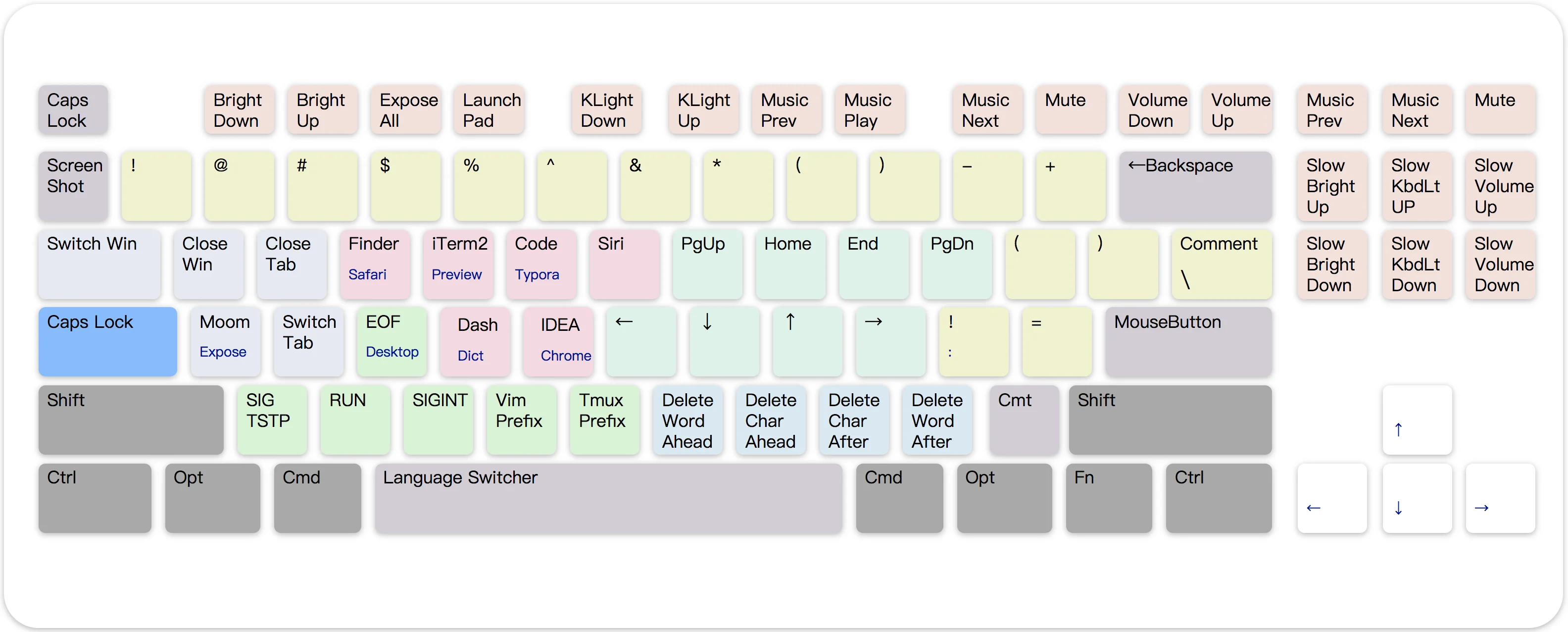
Capslock Enhancement Mac V2, the 2017–2021 Karabiner-Elements rules that made Caps Lock Escape on a tap and Hyper on a hold.
Archived, not maintained
Mac V2 was written for Karabiner-Elements on macOS 10.11 El Capitan, 10.12
Sierra and 10.13 High Sierra, the systems its README listed. It was replaced
by Mac V3 in 2021 and has not been checked
against current macOS or Karabiner-Elements.
Mac V2 was the first Capslock edition for Karabiner-Elements, the rewrite of
Karabiner that macOS Sierra required. It is a set of ten complex-modification
rules. A tap on Caps Lock sends Escape. Holding it turns it into Hyper
(✱): Karabiner-Elements holds the four right-hand modifiers, ⌃ ⌥ ⇧ ⌘,
together, so Hyper still combines with the left-hand ones and most apps accept
it.
The layout diagram from the V2 README. A few app keys in it differ from the tables on this page, which follow the rule file.
Caps Lock
Key
Result
Tap Caps Lock
Escape
Hold Caps Lock
Hyper (✱), the right-hand ⌃ ⌥ ⇧ ⌘ held together
✱ Escape
Caps Lock. The README notes a bug: Caps Lock was hard to turn off again
Navigation
Hyper alone moves the cursor. Adding one left-hand modifier selects instead,
moves the pointer, switches tabs and apps, or works with Spaces.
The README suggested replacing these with your own favourite apps.
Key
✱
✱ ⌘
E
Safari
Finder
R
iTerm2
Preview
T
Visual Studio Code
Typora
D
⌃D (see above)
Dictionary
F
⌃⌥⇧⌘F, left free for Alfred
Dash
G
IntelliJ IDEA
Google Chrome
Function keys
V2 expected F1 to F12 to act as standard function keys and used Hyper to get
the printed functions back. On a MacBook Pro with a Touch Bar, the README
suggested turning on Karabiner-Elements › Function Keys › "Use all F1, F2, etc.
keys as standard function keys".
Key
✱
Key
✱
F1
Brightness down
F7
Previous track
F2
Brightness up
F8
Play or pause
F3
Mission Control
F9
Next track
F4
Launchpad
F10
Mute
F5
Keyboard backlight down
F11
Volume down
F6
Keyboard backlight up
F12
Volume up
Keys found on full-size keyboards:
Key
✱
F13 (Print Screen)
Previous track
F14 (Scroll Lock)
Next track
F15 (Pause)
Mute
Insert, Delete
Brightness up, down, in fine steps
Home, End
Keyboard backlight up, down, in fine steps
Page Up, Page Down
Volume up, down, in fine steps
Shifted symbols
Key
✱ types
1 2 3 4 5 6 7 8 9 0
! @ # $ % ^ & * ( )
- =
_ +
[ ]
( )
;
!
'
=
✱ ⌘ ;
:
✱ ⌘ '
=
The last four rows make != and := quick to type.
Other keys
Key
Sends
Result
✱ `
⌃⇧⌘4
Screenshot of an area, to the clipboard
✱ ⌘ `
⇧⌘4
Screenshot of an area, to a file
✱ Delete
⌘⌫
Move to Trash in Finder
✱ / and ✱ \
⌘/
Comment or uncomment, in many editors
✱ Space
⌃Space
Switch input source
How it was installed
These are the steps from the V2 README, kept for the record.
Or copy capslock.json into
~/.config/karabiner/assets/complex_modifications/, which is what
make install in the mac_v2 folder does.
In Karabiner-Elements, open the Complex Modifications tab, click Add
Item, and enable the rules you want.
To change the apps or any other key, edit the imported file in
~/.config/karabiner/assets/complex_modifications/.
Note
The README's own import link pointed at the repository's mac/ folder, which
now holds V3, and its second link pointed at the Karabiner-Elements gallery,
which also lists V3 today. The address above points at the V2 file.
A complete Karabiner-Elements configuration with the same rules. make all copies it over ~/.config/karabiner/karabiner.json and replaces your existing settings
Planes. V2 combined Hyper with one left-hand modifier at a time, which
gave it only a few planes. V3 combines Hyper with any of the four left-hand
modifiers, for up to 16 planes.
Changed keys. In V3.1, F13 and F14 control screenshots instead of the
previous and next track, ✱ ⌘ D runs Define instead of opening
Dictionary, and Spotlight replaces Launchpad.