This is the multi-page printable view of this section. .
Earlier versions
Before V3, the Capslock layout went through three editions: an AutoHotkey script for Windows, an XML configuration for the original Karabiner on OS X, and a first set of rules for Karabiner-Elements. Their files are still in the GitHub repository. These pages record what each edition did and how it was installed.
These versions are not maintained. They were written for operating systems that are many years old, and nobody has checked them against current macOS or Windows. To use the layout today, install Mac V3.
| Version | Years | Ran on | Configuration |
|---|---|---|---|
| Mac V2 | 2017 – 2021 | Karabiner-Elements on macOS 10.11 – 10.13 | Complex-modification rules in JSON |
| Mac V1 | 2015 – 2017 | Karabiner and Seil on OS X 10.10 – 10.11 | A Karabiner private.xml |
| Windows | 2013 – 2015 | AutoHotkey on Windows XP – 10 | An AutoHotkey script and a prebuilt .exe |
The Mac editions wrote Hyper as ✱, and these pages keep that notation:
✱ H means hold Caps Lock and press H.
1 - Mac V2
Mac V2 was written for Karabiner-Elements on macOS 10.11 El Capitan, 10.12 Sierra and 10.13 High Sierra, the systems its README listed. It was replaced by Mac V3 in 2021 and has not been checked against current macOS or Karabiner-Elements.
Mac V2 was the first Capslock edition for Karabiner-Elements, the rewrite of
Karabiner that macOS Sierra required. It is a set of ten complex-modification
rules. A tap on Caps Lock sends Escape. Holding it turns it into Hyper
(✱): Karabiner-Elements holds the four right-hand modifiers, ⌃ ⌥ ⇧ ⌘,
together, so Hyper still combines with the left-hand ones and most apps accept
it.
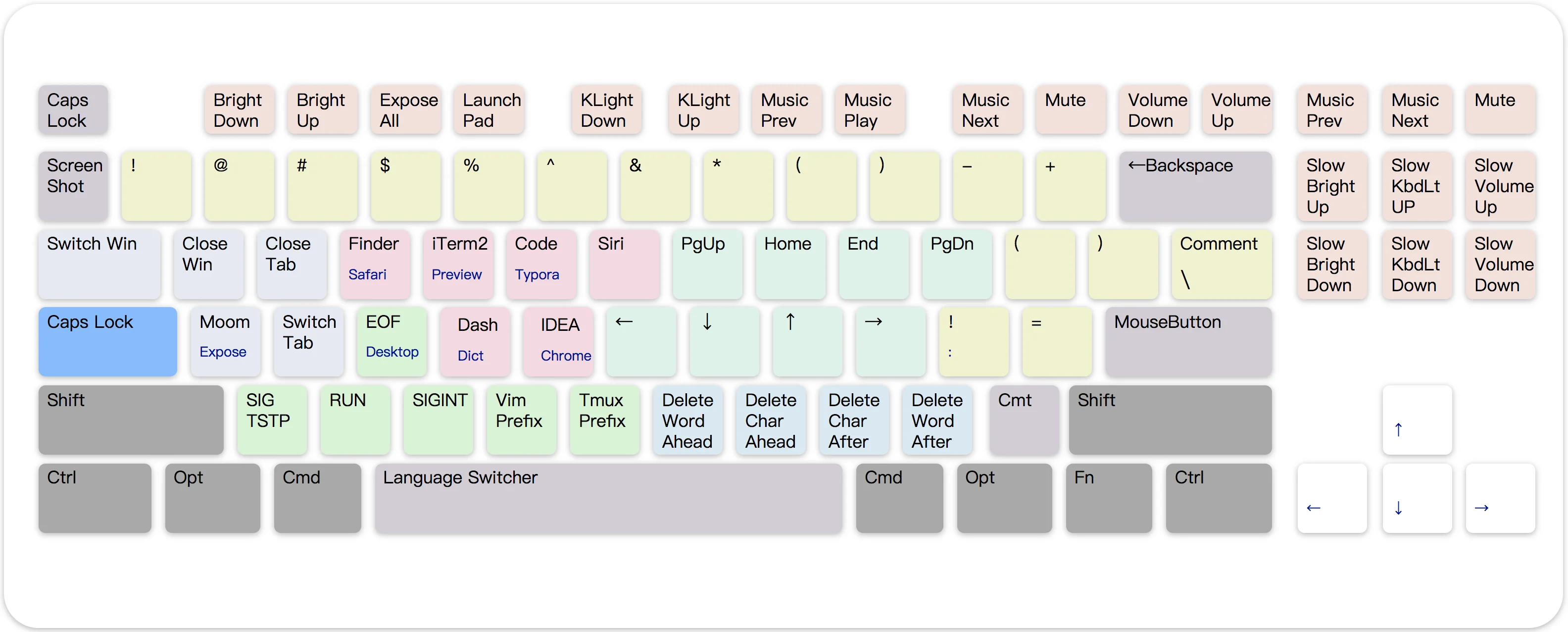
Caps Lock
| Key | Result |
|---|---|
| Tap Caps Lock | Escape |
| Hold Caps Lock | Hyper (✱), the right-hand ⌃ ⌥ ⇧ ⌘ held together |
✱ Escape | Caps Lock. The README notes a bug: Caps Lock was hard to turn off again |
Navigation
Hyper alone moves the cursor. Adding one left-hand modifier selects instead, moves the pointer, switches tabs and apps, or works with Spaces.
| Key | ✱ move | ✱ ⌘ select | ✱ ⌥ pointer | ✱ ⇧ switch | ✱ ⌃ Spaces |
|---|---|---|---|---|---|
| H | ← | ⇧← | Pointer left | Previous tab (⌃⇧Tab) | Space to the left (⌃←) |
| J | ↓ | ⇧↓ | Pointer down | Next app (⌘Tab) | Windows of the current app (⌃↓) |
| K | ↑ | ⇧↑ | Pointer up | Previous app (⇧⌘Tab) | Mission Control (⌃↑) |
| L | → | ⇧→ | Pointer right | Next tab (⌃Tab) | Space to the right (⌃→) |
| U | Page Up | ⇧Page Up | — | — | — |
| I | Home | ⇧Home | — | — | — |
| O | End | ⇧End | — | — | — |
| P | Page Down | ⇧Page Down | — | — | — |
Mouse
| Key | Result |
|---|---|
✱ ← ↓ ↑ → | Move the pointer, like ✱ ⌥ H J K L |
✱ Return | Left click |
✱ ⌘ Return | Right click |
Deleting
| Key | Sends | Deletes |
|---|---|---|
✱ N | ⌥⌫ | The word before the cursor |
✱ M | ⌫ | The character before the cursor |
✱ , | ⌦ | The character after the cursor |
✱ . | ⌥⌦ | The word after the cursor |
✱ ⌘ N, ✱ ⌘ M | ⌘⌫ | Back to the start of the line |
Windows and tabs
| Key | Sends | Result |
|---|---|---|
✱ Tab | ⌘Tab | Next app |
✱ ⌘ Tab | ⇧⌘Tab | Previous app |
✱ Q | ⌘Q | Quit the app |
✱ W | ⌘W | Close the tab |
✱ S | ⌃Tab | Next tab |
✱ ⌘ S | ⌃⇧Tab | Previous tab |
✱ A | ⌃⌥⇧⌘A | Left free for the window manager Moom |
✱ ⌘ A | ⌃↑ | Mission Control |
Terminal keys
| Key | Sends | Used for |
|---|---|---|
✱ Z | ⌃Z | Suspend the job (SIGTSTP) |
✱ X | ⌃R | Run, in IDEs |
✱ C | ⌃C | Interrupt (SIGINT) |
✱ V | ⌃V | Vim prefix |
✱ B | ⌃B | The default tmux prefix |
✱ D | ⌃D | End of input (EOF) |
Apps
The README suggested replacing these with your own favourite apps.
| Key | ✱ | ✱ ⌘ |
|---|---|---|
| E | Safari | Finder |
| R | iTerm2 | Preview |
| T | Visual Studio Code | Typora |
| D | ⌃D (see above) | Dictionary |
| F | ⌃⌥⇧⌘F, left free for Alfred | Dash |
| G | IntelliJ IDEA | Google Chrome |
Function keys
V2 expected F1 to F12 to act as standard function keys and used Hyper to get the printed functions back. On a MacBook Pro with a Touch Bar, the README suggested turning on Karabiner-Elements › Function Keys › "Use all F1, F2, etc. keys as standard function keys".
| Key | ✱ | Key | ✱ |
|---|---|---|---|
| F1 | Brightness down | F7 | Previous track |
| F2 | Brightness up | F8 | Play or pause |
| F3 | Mission Control | F9 | Next track |
| F4 | Launchpad | F10 | Mute |
| F5 | Keyboard backlight down | F11 | Volume down |
| F6 | Keyboard backlight up | F12 | Volume up |
Keys found on full-size keyboards:
| Key | ✱ |
|---|---|
| F13 (Print Screen) | Previous track |
| F14 (Scroll Lock) | Next track |
| F15 (Pause) | Mute |
| Insert, Delete | Brightness up, down, in fine steps |
| Home, End | Keyboard backlight up, down, in fine steps |
| Page Up, Page Down | Volume up, down, in fine steps |
Shifted symbols
| Key | ✱ types |
|---|---|
| 1 2 3 4 5 6 7 8 9 0 | ! @ # $ % ^ & * ( ) |
| - = | _ + |
| [ ] | ( ) |
| ; | ! |
| ' | = |
✱ ⌘ ; | : |
✱ ⌘ ' | = |
The last four rows make != and := quick to type.
Other keys
| Key | Sends | Result |
|---|---|---|
✱ ` | ⌃⇧⌘4 | Screenshot of an area, to the clipboard |
✱ ⌘ ` | ⇧⌘4 | Screenshot of an area, to a file |
✱ Delete | ⌘⌫ | Move to Trash in Finder |
✱ / and ✱ \ | ⌘/ | Comment or uncomment, in many editors |
✱ Space | ⌃Space | Switch input source |
How it was installed
These are the steps from the V2 README, kept for the record.
- Download and install Karabiner-Elements.
- Import the rules by opening this address in Safari:Or copy
capslock.jsoninto~/.config/karabiner/assets/complex_modifications/, which is whatmake installin themac_v2folder does. - In Karabiner-Elements, open the Complex Modifications tab, click Add Item, and enable the rules you want.
- To change the apps or any other key, edit the imported file in
~/.config/karabiner/assets/complex_modifications/.
The README's own import link pointed at the repository's mac/ folder, which
now holds V3, and its second link pointed at the Karabiner-Elements gallery,
which also lists V3 today. The address above points at the V2 file.
Files
All of V2 is in mac_v2/
in the repository.
| File | What it is |
|---|---|
capslock.json | The ten V2 rules, ready to import |
karabiner.json | A complete Karabiner-Elements configuration with the same rules. make all copies it over ~/.config/karabiner/karabiner.json and replaces your existing settings |
makefile | The install and all targets described above |
README.md | The original V2 documentation |
Differences from V3
- Planes. V2 combined Hyper with one left-hand modifier at a time, which gave it only a few planes. V3 combines Hyper with any of the four left-hand modifiers, for up to 16 planes.
- Changed keys. In V3.1, F13 and F14 control screenshots instead of the
previous and next track,
✱ ⌘D runs Define instead of opening Dictionary, and Spotlight replaces Launchpad.
2 - Mac V1
Mac V1 was the first Capslock edition for the Mac. It needed two tools. Seil
changed the key code that Caps Lock sends to 80, the code of F19. Karabiner then
read V1's private.xml, which turned that key into Hyper (✱) while held
and defined each group of shortcuts as a separate item to switch on in
Karabiner's preferences.
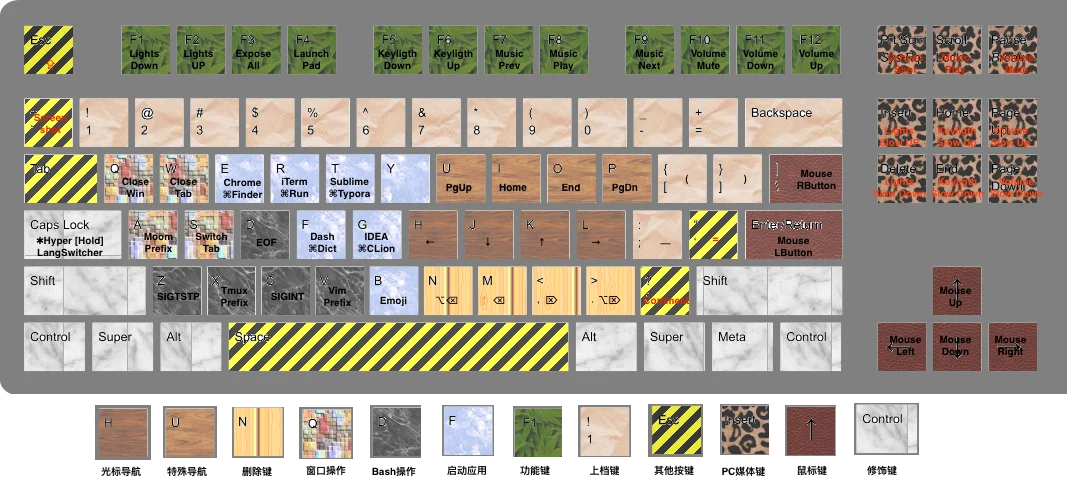
Caps Lock
| Key | Result |
|---|---|
| Hold Caps Lock | Hyper (✱) |
| Tap Caps Lock | Escape, or ⌃Space to switch input source. These are two separate items that conflict, so turn on only one |
✱ Escape | Caps Lock |
✱ Space | Escape |
Navigation
Hold Hyper to move the cursor; add the left ⌘ to select as you move.
| Key | ✱ move | ✱ ⌘ select |
|---|---|---|
| H | ← | ⇧← |
| J | ↓ | ⇧↓ |
| K | ↑ | ⇧↑ |
| L | → | ⇧→ |
| U | Page Up | ⇧Page Up |
| I | Home | ⇧Home |
| O | End | ⇧End |
| P | Page Down | ⇧Page Down |
Deleting
| Key | Sends | Deletes |
|---|---|---|
✱ N | ⌥⌫ | The word before the cursor |
✱ M | ⌫ | The character before the cursor |
✱ , | ⌦ | The character after the cursor |
✱ . | ⌥⌦ | The word after the cursor |
Windows and tabs
| Key | Sends | Result |
|---|---|---|
✱ A | ⌃⌥⇧⌘A | Left free for the window manager Moom |
✱ ⌘ A | F11 | Show the desktop |
✱ Q | ⌘Q | Quit the app |
✱ Tab | ⌘Tab | Next app |
✱ ⌘ Tab | ⇧⌘Tab | Previous app |
✱ S | ⌃Tab | Next tab |
✱ ⌘ S | ⌃⇧Tab | Previous tab |
✱ W | ⌘W | Close the tab |
Terminal keys
| Key | Sends | Used for |
|---|---|---|
✱ Z | ⌃Z | Suspend the job (SIGTSTP) |
✱ X | ⌃B | The default tmux prefix |
✱ C | ⌃C | Interrupt (SIGINT) |
✱ D | ⌃D | End of input (EOF) |
Apps
The README suggested replacing these with your own favourite apps.
| Key | ✱ | ✱ ⌘ |
|---|---|---|
| E | Google Chrome, or Safari through a separate item | Finder |
| R | iTerm | ⌃R, Run in IDEs |
| T | Typora | MWeb |
| F | Dash | Dictionary |
| G | IntelliJ IDEA | — |
| V | Visual Studio Code | — |
Function keys
| Key | ✱ | Key | ✱ |
|---|---|---|---|
| F1 | Brightness down | F7 | Previous track |
| F2 | Brightness up | F8 | Play or pause |
| F3 | Mission Control | F9 | Next track |
| F4 | Launchpad | F10 | Mute |
| F5 | Keyboard backlight down | F11 | Volume down |
| F6 | Keyboard backlight up | F12 | Volume up |
Keys found on full-size keyboards:
| Key | ✱ |
|---|---|
| Insert, Delete | Brightness up, down, in fine steps |
| Home, End | Keyboard backlight in fine steps |
| Page Up, Page Down | Volume up, down, in fine steps |
| Scroll Lock | Mute |
| Pause | Play |
Shifted symbols
| Key | ✱ types |
|---|---|
| 1 2 3 4 5 6 7 8 9 0 | ! @ # $ % ^ & * ( ) |
| - = | _ + |
| [ ] | ( ) |
| ; | _ |
| ' | = |
Mouse
| Key | Result |
|---|---|
✱ ← ↓ ↑ → | Move the pointer |
✱ Return | Left click |
✱ \ | Right click |
Other keys
| Key | Sends | Result |
|---|---|---|
✱ / | ⌘/ | Comment or uncomment, in many editors |
✱ ` | ⌃⇧⌘4 | Screenshot of an area, to the clipboard |
✱ ⌘ ` | ⇧⌘4 | Screenshot of an area, to a file |
How it was installed
These are the steps from the V1 README, kept for the record.
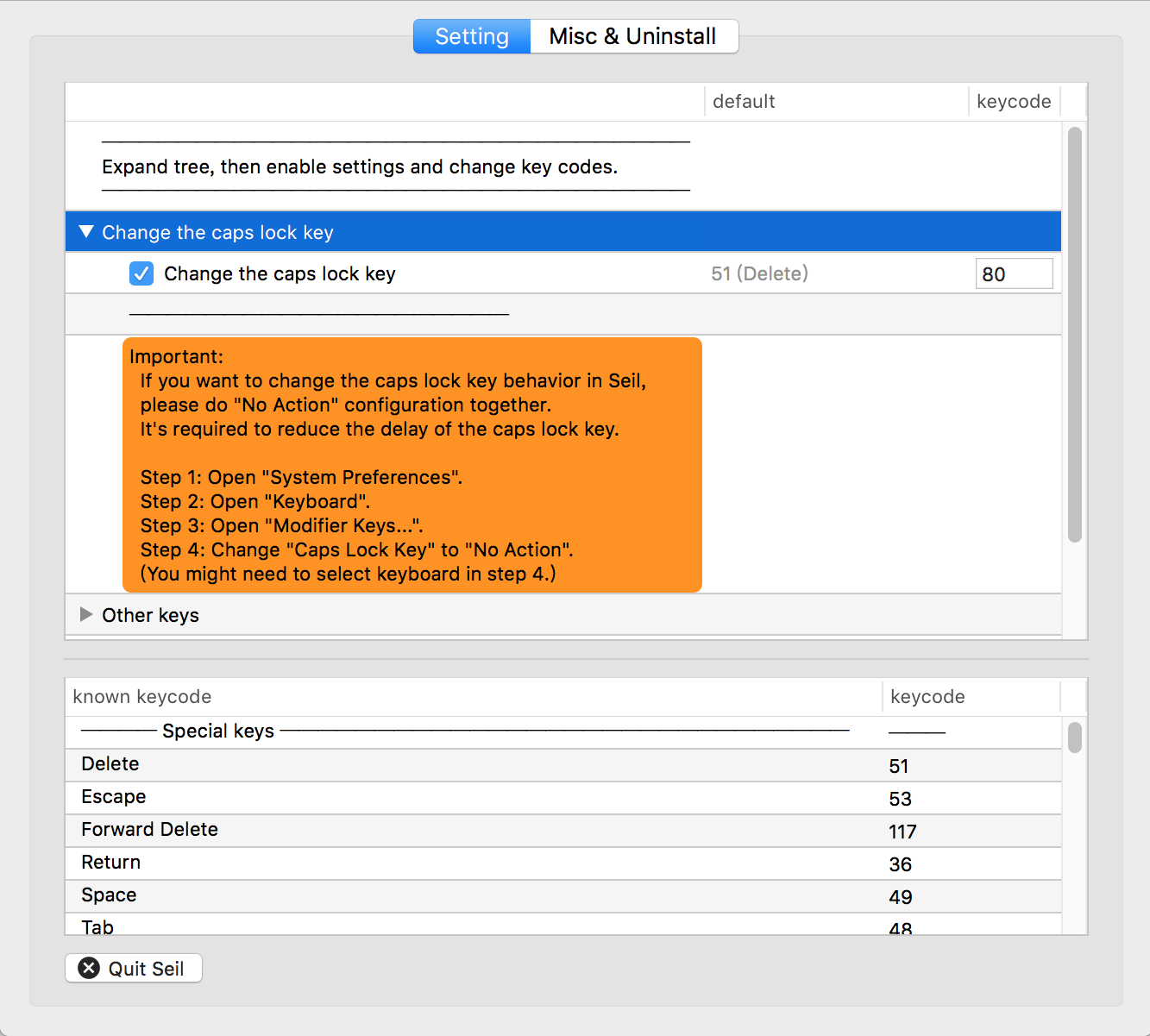
- Download and install Seil.
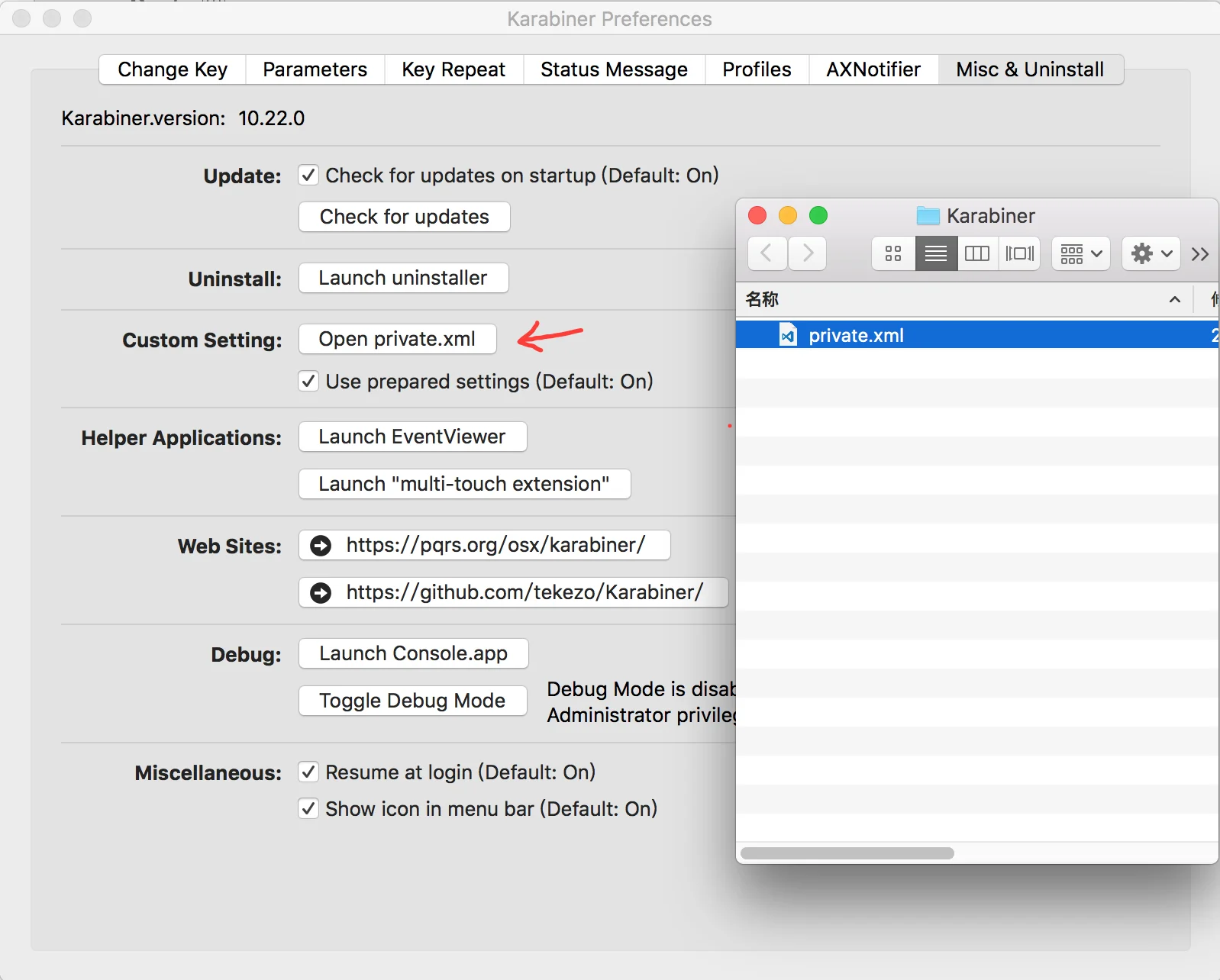
- Download and install Karabiner.
- In Seil, turn on Change the caps lock key and set its key code to
80. - In Karabiner, open the Misc & Uninstall tab and click Open
private.xml. Replace that file with V1's
private.xml. Thesetupscript in themac_v1folder copies it to~/Library/Application Support/Karabiner/private.xmlfor you. - Return to the Change Key tab, click Reload XML, and enable the items you want.
Files
All of V1 is in mac_v1/
in the repository.
| File | What it is |
|---|---|
private.xml | The V1 configuration for the original Karabiner |
setup | A shell script that copies private.xml into Karabiner's folder |
README.md | The original V1 documentation |
Differences from V3
- Tools. V1 needed Seil and the original Karabiner, configured in XML. Karabiner-Elements replaced the original Karabiner for macOS Sierra and later; V2 and V3 are JSON rules for it and do not need Seil.
- Tapping Caps Lock. V1 let you choose between Escape and switching input source. V3 sends Escape on a tap.
3 - Windows
The Windows version is an AutoHotkey script from 2013–2015. The Mac V2 README listed Windows XP, Vista, 7, 8 and 10 as its systems. Neither the script nor the prebuilt executable is tested on current Windows.
Capslock began on Windows in 2013, two years before the first Mac version. The script turns Caps Lock, which it calls the "useless key", into a function key like Ctrl and Alt by combining it with almost every other key on the keyboard. Caps Lock itself is kept off, and its old job moves to Caps Lock + `.
Some of its bindings differ from the Mac versions. The Mac V2 README notes this, and that the Windows version is no longer maintained.
What it did
The README summarises the script in one table. This version of it fills in the details from the script itself.
| Keys | What they do |
|---|---|
| Caps Lock | Escape, handy in Vim |
| Caps Lock + ` | Turn Caps Lock on or off |
| Caps Lock + H J K L | Vim-style arrow keys |
| Caps Lock + W B | One word right, one word left |
| Caps Lock + U I O P | Page Up, Home, End, Page Down |
| Caps Lock + N M , . | Delete: Ctrl+Backspace, Backspace, Delete, Ctrl+Delete |
| Caps Lock + Z X C V A Y | Ctrl+Z, X, C, V, A, Y: the usual Windows editing shortcuts |
| Caps Lock + arrow keys | Move the mouse pointer |
| Caps Lock + Enter | Mouse click |
| Caps Lock + F1 – F6 | Mute, volume down, volume up, play or pause, next track, stop |
| Caps Lock + Q S | Window and tab control |
| Caps Lock + ; ' [ ] | Convenience mappings |
| Caps Lock + D F E R T | Frequently used programs, chosen by the user |
| Caps Lock + 1 – 5 | Visual Studio shortcuts, chosen by the user |
| Caps Lock + 6 7 8 9 0 - = | The shifted symbols, as if Shift were held |
Running it
The README gives no installation steps. The repository holds the script in two forms:
- The source,
CapsLock.ahk, runs with AutoHotkey. It uses AutoHotkey v1 syntax. - A prebuilt executable,
CapsLock.exe, runs without AutoHotkey.
CapsLock.exe is an old, unsigned, 32-bit prebuilt binary. It has not been
tested on current Windows. If you want to try the layout, read the source
and run it with AutoHotkey v1 instead.
Files
All of the Windows version is in
win/ in the repository.
| File | What it is |
|---|---|
CapsLock.ahk | The AutoHotkey source |
CapsLock.exe | The prebuilt executable, 207,868 bytes |
README.md | The original summary |
The SHA-256 of CapsLock.exe in the repository is
e0d6a4d2de155860aed164281ed16f5871aaca95cccc6fe1d46db2b16004cb80.